
Using the app
How to use
Castor.
The frames below are the real app, recorded on a Fire TV while the remote was pressed. The remote and a phone are not the same, so each step says both.
The longer clip, guide through recording, plays on the home page.
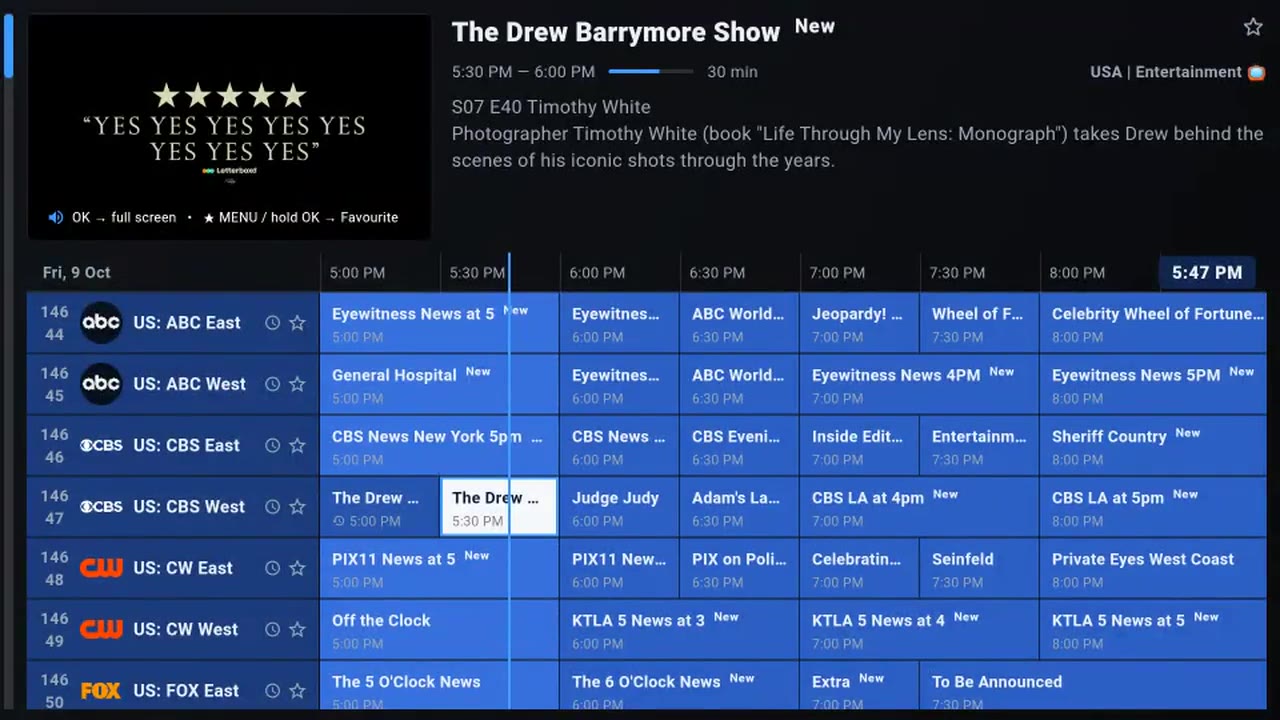
The remote
Seven things people ask on the first night.
-
Install the app
Downloader does the typing on a Fire TV. A phone just downloads the file.
On a TV
Install Downloader by AFTVnews from the Amazon Appstore. Open it and type www.castor.now/a. Choose Go, then Install. Restart the Fire TV once (Settings, My Fire TV, Restart), then open Castor.
On a phone or tablet
Download the app, allow this install when Android asks, then open Castor. On an Android box, use the Fire TV short link in Downloader instead, and restart once before you open it.
If the Fire TV refuses the install, allow Downloader under Settings, My Fire TV, Developer options, Install unknown apps. The restart is worth the minute: it stops the freezing some people see on the first day. The same steps are on the download page and the Fire TV guide.
-
Find Movies, Series and Sports
This is the one people miss. The menu is hidden until you ask for it.
On a TV
Press LEFT once for the channel groups, and LEFT again for Live TV, Movies, Series, Sports and Radio.
On a phone
There is no LEFT key. Tap Menu at the bottom left of the screen.
That second press is the one that catches people out. One press gets the channel groups, which look like the whole menu but are not.
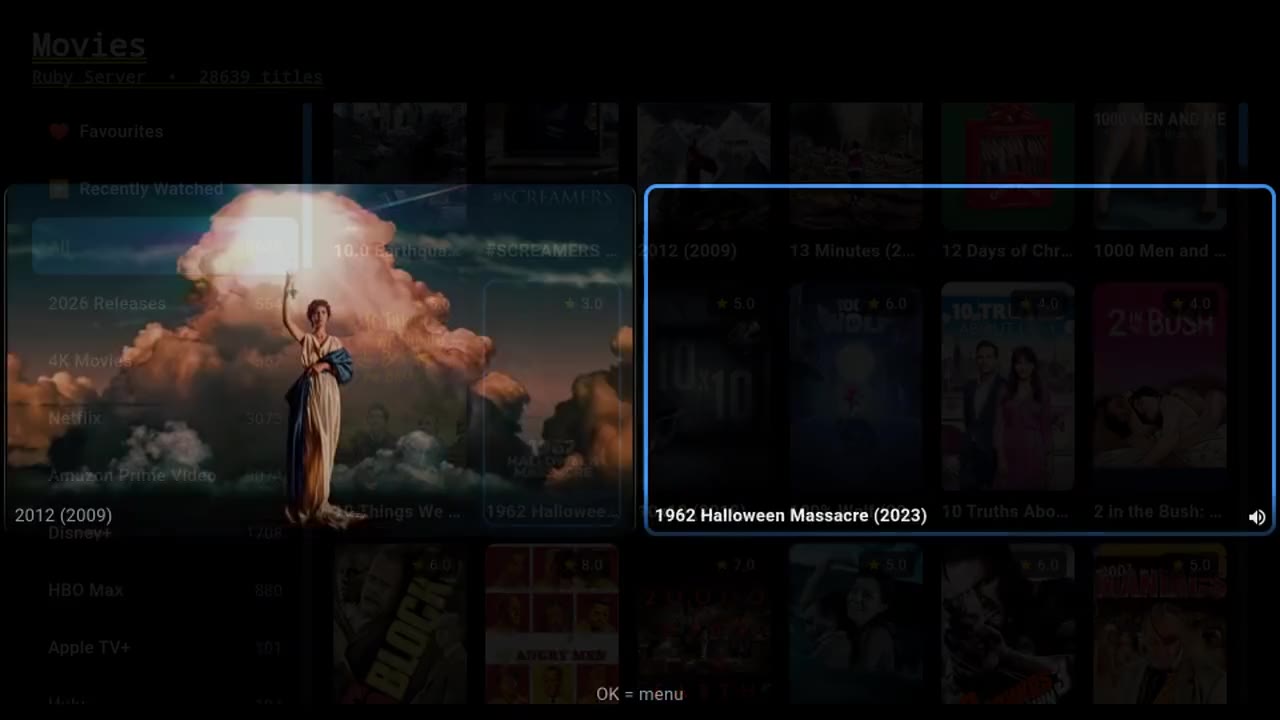
Movies, after the second LEFT. Series and Sports are in that same menu. -
Search for one thing
Faster than hunting through the list.
On a TV
Open the menu, choose Search, and type a few letters. It looks through live channels, films and series at the same time.
On a phone
Tap Menu, then Search, then type. The same results.
Searching a film name also finds the live channel showing it, with the programme on now, so you can watch it live instead of waiting.
-
Watch four screens at once
Built for a Sunday with four games on. Films can join in too.
On a TV
On a channel, press the menu button or hold OK, then choose Multi screen. On a film, choose Multi screen next to Play. Then press OK on a screen and choose Add screen for another channel, or Add movie for a film.
On a phone
Press and hold a channel and choose Multi screen, or tap Multi screen next to Play on a film. Tap a screen to add another channel or a film.
Each screen is a separate stream, so two screens use two connections and four use four. With one connection, add more before you try it.
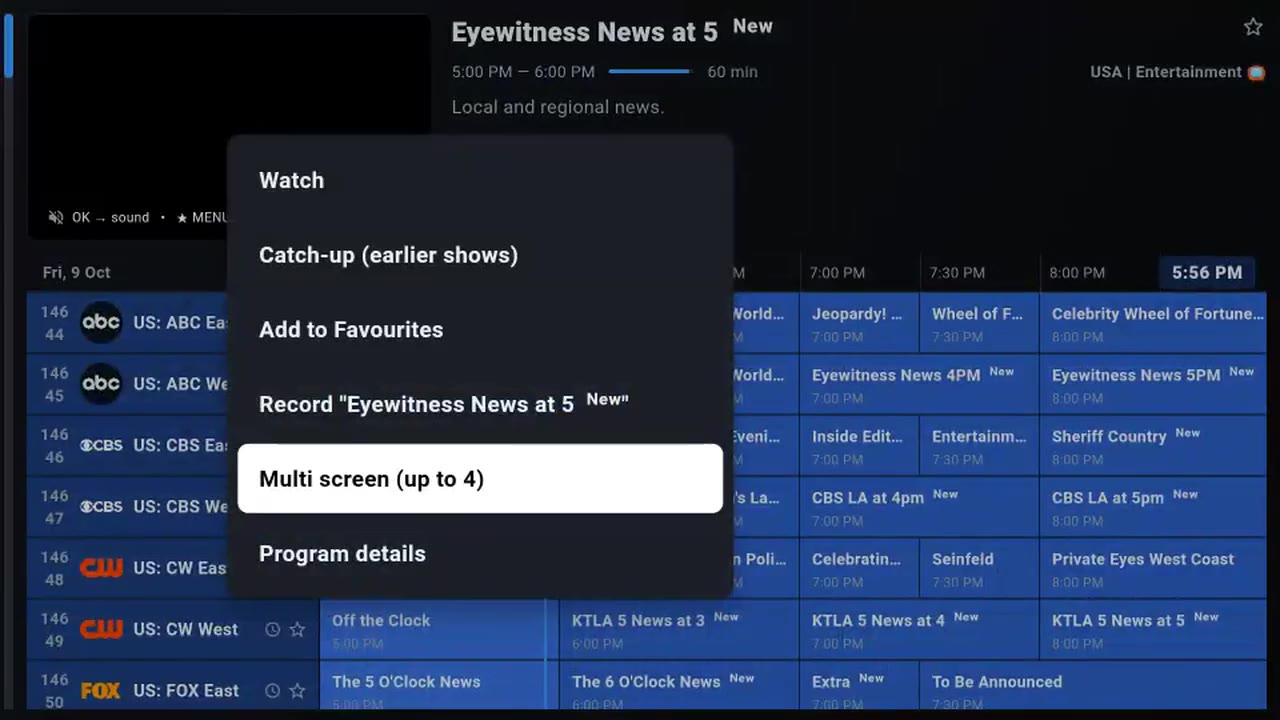
On a channel: the menu button, Multi screen, then Add screen. 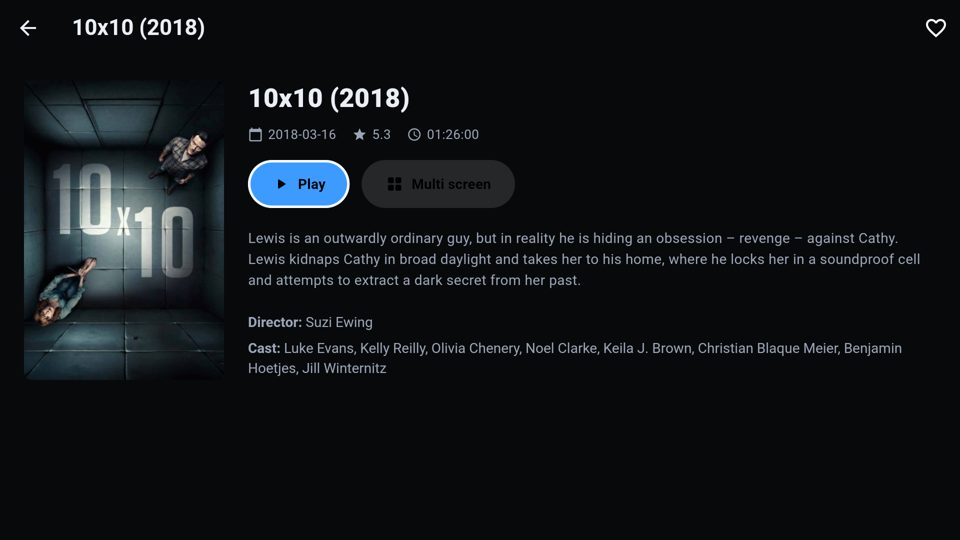
On a film: Multi screen sits next to Play. -
Keep your channels together
So you are not scrolling past the whole list to reach the six you watch.
On a TV
On a channel, press the menu button or hold OK, then choose Add to Favourites. Your favourites sit in their own group at the top of the list.
On a phone
Press and hold the channel, then choose Add to Favourites.
Favourites stay where they are when the app updates. They are only lost if you uninstall it.
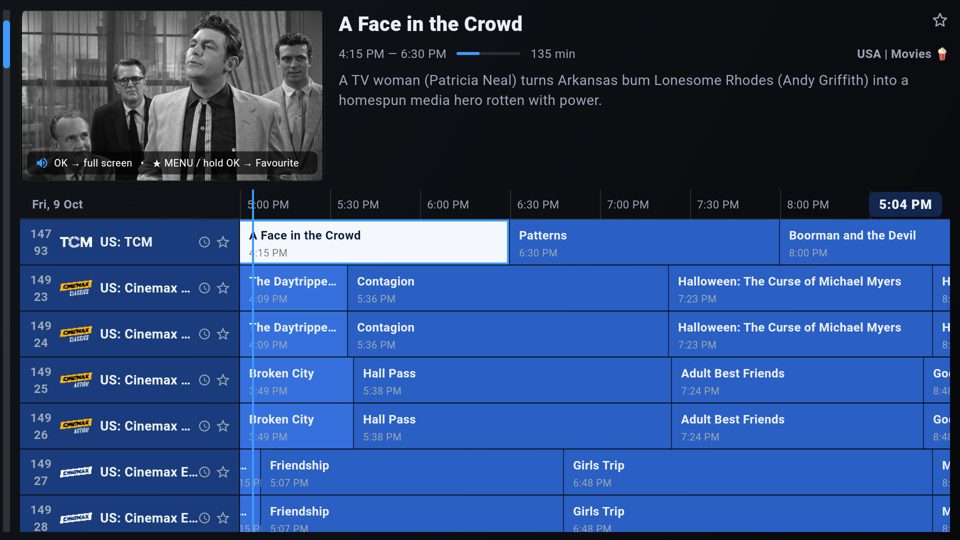
The star marks a favourite. They stay at the top. -
Pause and rewind live TV
Yes, on live channels.
On a TV
While a channel is playing full screen, press OK to bring up the controls, then press OK on pause. Press play to carry on from where you stopped.
On a phone
Tap the picture to bring up the controls, then tap pause.
How far back you can go depends on the channel. Most keep the last few hours, and the guide shows what has already been on.
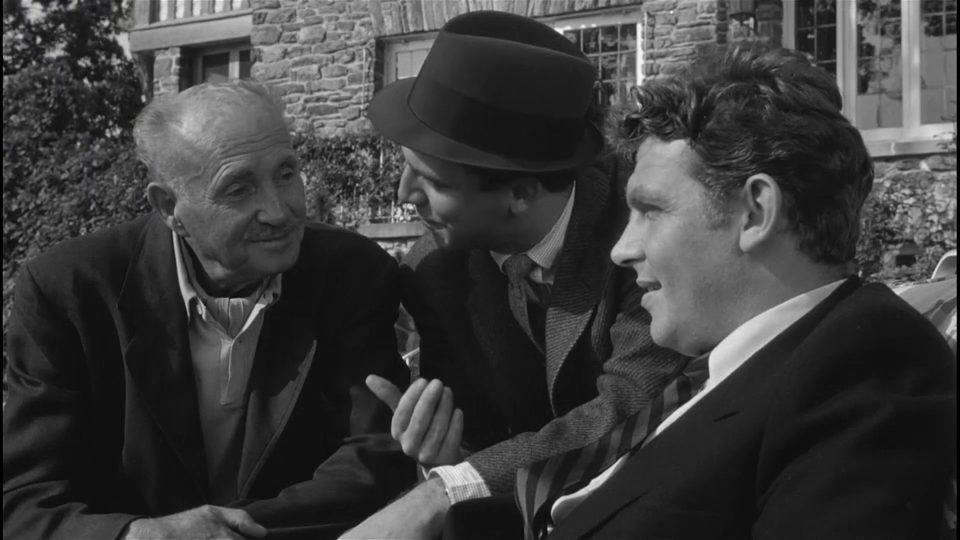
Full screen. OK on the remote, or a tap on a phone, brings up pause. -
Record a programme
Keep a show for later, on the device itself.
On a TV
On a channel, press the menu button or hold OK, then choose Record. It records the programme that is on now, or the next hour on a channel without a guide. Your recordings are in the menu under Recordings.
On a phone
Press and hold a channel, then choose Record. Tap Menu, then Recordings, to find it.
A recording uses one connection while it runs, like an extra screen. The file is saved on the device, so it plays back after the channel has moved on. Keep the app open while it records.
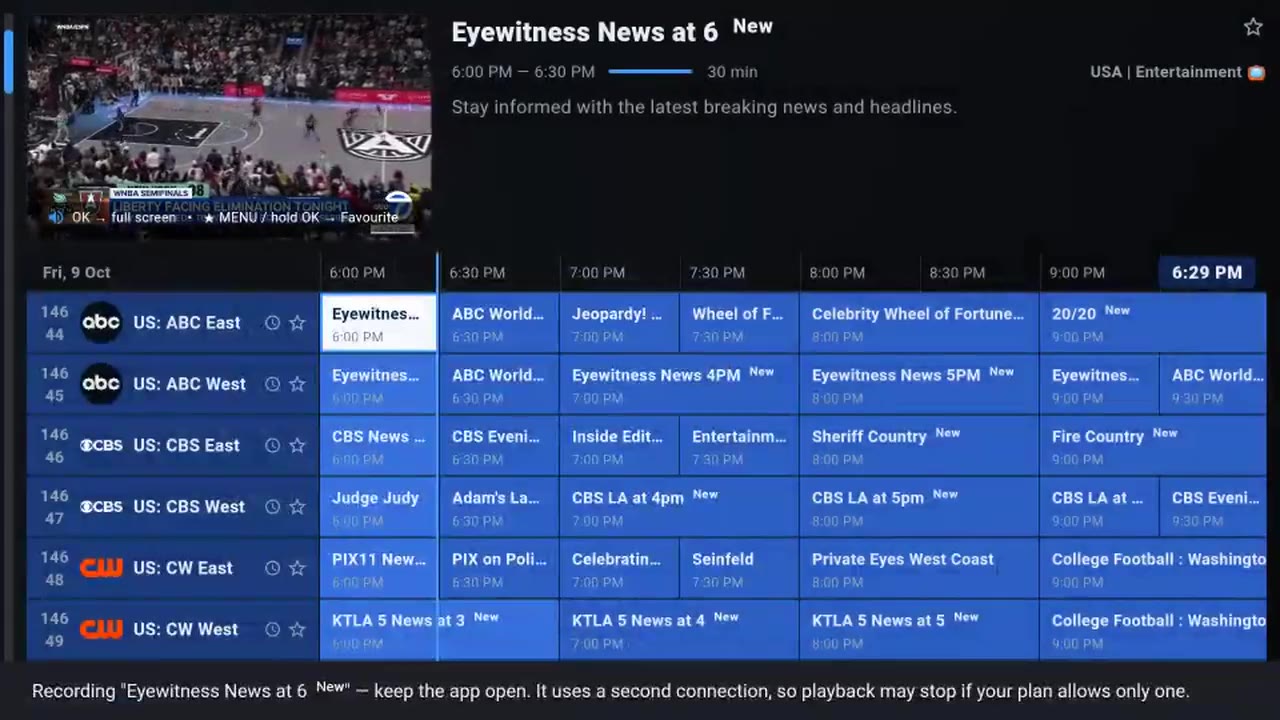
The banner names the programme and reminds you it uses a second connection.
While it plays
The remote, once a channel is open.
- Next channel. UP or DOWN, while it is full screen. It stays in the same group.
- The guide, over the picture. LEFT or RIGHT. The show keeps playing behind the list. BACK closes it.
- A channel you just left. Press OK. The bar has your last eight channels.
- A film on a phone. Tap the picture, then 30 to jump forward or 10 to go back.
- Hide groups. Settings, Channel groups. Switch off the ones you never open.
- Sign in without typing. The screen shows a six-digit code. Send it and we sign the TV in.
- It freezes. Restart the TV once. Not connected: press Retry, then restart. An empty guide: Settings, Update EPG now.
- While it records. You can change channel. The app stays open, and the recording uses one connection.
Also in the recording
Sports, and a channel full screen.
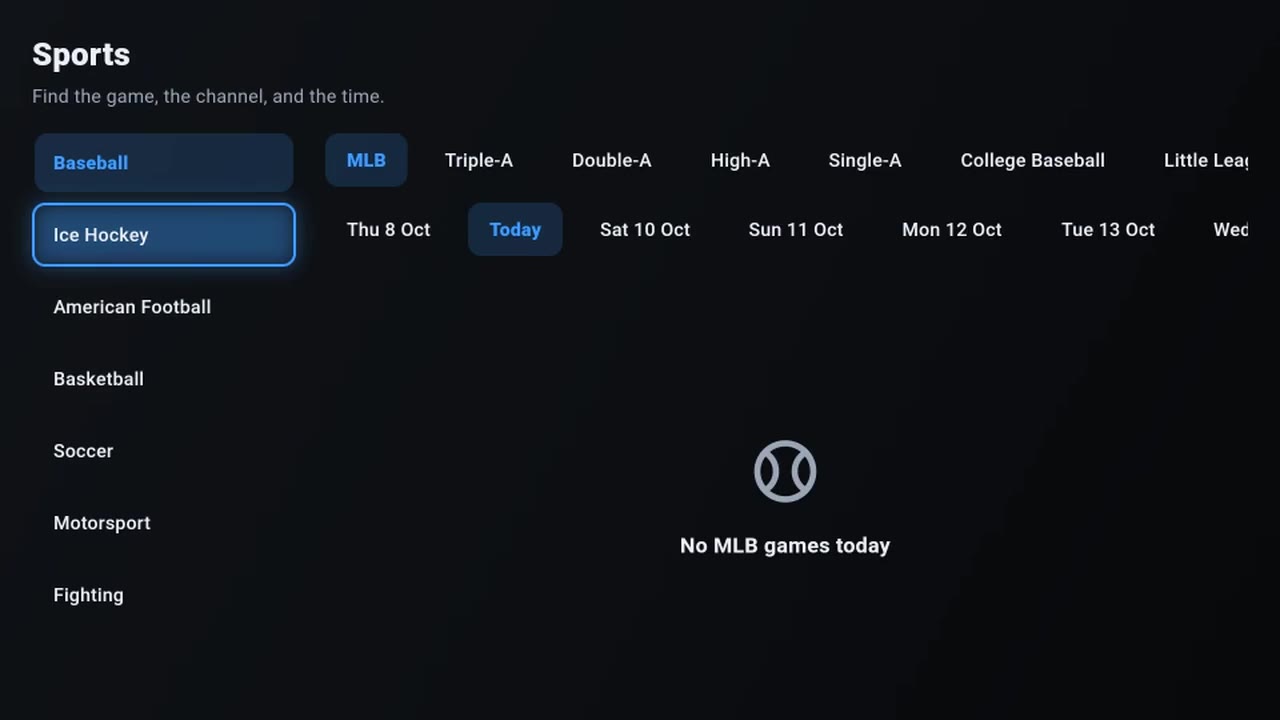
The home-page clip walks through these as well. Sports is in the same menu as Movies.
Still stuck?
Message us and say what you are looking at. We can sign the device in from our side if typing on the TV is the problem.